Los Angeles County has a new voting system this year. Instead of every registered voter being assigned a specific polling place based on their home address, you can vote at any polling place — excuse me, “vote center” — in the county. There are fewer locations than there used to be, but they’re also open longer for early voting, with locations open the weekend before election day, and some open as many as 11 days ahead.

The idea, as I understand it, is to make it as easy as possible to get to a polling place, no matter what work hours or commute you have to deal with. Hit one near home on your day off, or near work during lunch, or whatever works.

I went in Monday morning for Tuesday’s primary election, figuring the lines would probably be shorter. It was at the local library, and I was kind of amused to see the “Please do not place ballots in book drop” sign, but as expected, there was basically no line. The process was interesting:

  1. They scanned my sample ballot and printed out a code on an otherwise-blank sheet of paper.
  2. I took the paper to one of the voting machines and placed it into a feeder slot.
  3. The machine pulled the paper in and launched the ballot on a touch screen. (The screen was a lot more responsive than the first digital voting machines I used back in the 2000s, where I could actually watch the screen repaint!)
  4. I chose a language for the ballot.
  5. I went through each ballot item, one page at a time. The full name/description was a touch target for each option, and once I’d selected a candidate (or yes/no), I pressed another button at the bottom of the screen to go to the next page.
  6. For items with more candidates than would fit on one screen, “More” buttons would pop up at the top and bottom of the screen. Not ideal, but at least it avoided the accidental-click-while-scrolling problem.
  7. At the end, it printed out all my choices on the paper and ejected it (with the top edge still in the rollers) so I could look it over.
  8. I pressed Confirm one more time, and it pulled the ballot back in for storage.

It also had headphones and physical buttons for an audio interface, and there were a lot of volunteers to help voters learn the new system.

It’s probably the most usable balloting system I’ve used. No paddle-wheel or slowly-responding buttons to overshoot with. No lining up generic scantron sheets with the ballot questions and hoping you didn’t position it wrong. No concern that the lever is going to knock over the cardboard voting booth when you punch it (though I do miss the satisfying ka-thunk! of those levers!)

And I really appreciate that the paper trail is not just machine-readable, but human-readable as well! Because that’s the key thing with ballots: it’s more important to be sure that the count is correct than to count it fast. The only way to be sure of that it to have an offline copy that can’t be hacked, like the paper printout. And a sheet of paper with the actual names is much easier to verify than a grid of unlabeled multiple-choice bubbles that you have to line up next to the right options.

Update: With election day come and gone, it’s clear that my good experience was only because I was there early. Countywide, LA reported long lines and people having trouble with the machines. Even at this same location, people waited for hours — in a primary, which normally has lower turnout. Even though there was another station less then a mile away with no line at all. And even though poll workers told them about it!

It’s definitely going to be a good idea to vote early in November, if possible. Update 2: Or just vote by mail, depending on what the Covid-19 pandemic looks like by then.

I use extensive filters on Gmail to categorize mail the way I want. I pre-filter some things to look at later, prioritize some lists (like allergy or uptime alerts), and pre-categorize things that I may want to file away after looking at them.

The problem is, I can only change filters on the desktop site. When I’m reading on my phone, I need to remind myself not to archive or delete messages that I want to start filtering.

It occurred to me: I can label those messages “Change Filter.” I could even do it right away – there’s a “Manage labels” option on the Android app!

Nope!

I can’t add labels in the app, just change the download and notification settings for each.

So, website then…

Except I can’t get at the full Gmail website on my phone. Or my tablet. Google insists on showing a stripped-down mobile site, which has even fewer capabilities than the app.

I can’t fault them for starting with the mobile site. It is helpful to focus on the features that work best on small touchscreens, under-powered processors, and high-latency, low-bandwidth networks, and can be done by someone on the go, rather than someone sitting at a keyboard with a big screen and a mouse.

But if someone wants to use the functionality you’ve left out, and is willing to slog through the desktop site on their phone or tablet, you should at least let them get at it!

In this case I waited until I could log in on a desktop, then added the label. But not everyone with a phone has a desktop or a laptop. And as the balance keeps shifting towards phones as people’s primary internet access device, that’s going to be more and more common.

It’s weird to look back on all the posts I made agonizing about whether or not to buy a netbook.

It was never anything I would have used on a regular basis, and I knew that (which is why I never went through with buying one). It would have been something I used on trips, mainly conventions, and only to overcome the shortcomings of late 2000s smartphones.

Mainly: photos and typing.

Photo by VIA Gallery from Hsintien, Taiwan - HP 2133 Mini-Note PC (front view compare with pencil) uploaded by Kozuch, CC BY 2.0
Photo by VIA Gallery from Hsintien, Taiwan – HP 2133 Mini-Note PC (front view compare with pencil) uploaded by Kozuch, CC BY 2.0
Back then, I always carried another camera to get the “good” pictures, because phone cameras were still crappy. So if I wanted to post something online, I had to get it off the camera, onto a computer, and then upload it. Today’s smartphone cameras and apps are so much more capable that they mostly solve the photo issues.

It’s still painfully slow to type anything of length on a phone, but tablets have emerged since then and are a lot easier to type on. Hybrids like the Surface Pro and add-on keyboards make it even easier.

Touchscreens have solved the crappy trackpad problem netbooks had.

Faster phones and cell networks, and a more mobile-friendly web, have made a lot more things possible directly on the phone.

Netbooks, meanwhile, are pretty much forgotten, at least in the form they existed in at the time. Chromebooks are doing OK, at least in schools, but they aren’t quite the same thing. You’d think “netbook” would refer to something more like the network-dependent Chromebook, but it typically referred to the tiny form factor of a mini-laptop.

Looking back at the Tori Amos signing that I mentioned in the series’ first post: These days I probably would have taken the pictures directly on my phone and posted to Instagram within minutes. As for the blogging, I might have powered through on the phone and added the pictures directly, or I might have done so on the tablet and added the pictures that would already have synced from the phone over WiFi.

I wouldn’t carry a laptop of any size around the convention floor, that’s for sure. And I probably wouldn’t bring one on a short trip at all unless I was planning on working during the evenings.

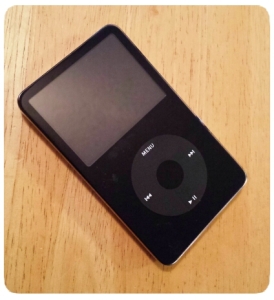
Fifth generation iPodAs I moved our iTunes library last week, I worried that the new system might not be able to sync with the old iPod, but relaxed when I saw that Apple still sold the click-wheel iPod Classic. They discontinued it a few days later, but fortunately we were able to sync the old devices.

Why do I prefer the older iPods with physical buttons and tiny screens?

Because I listen to music in the car, and a touch screen is a terrible interface for quick actions while driving.

While touch screens are better for menus, searches, finding albums, playlists, artists, and just about anything else, they’re actually dangerous for driving. A physical control of some sort is best for any action you might have to take while behind the wheel of a moving car.

Pause/Play, Skip and Volume. Those are the key things you want to be able to do with music without thinking too much about where you’re reaching, or taking your eyes off the road. (Especially if you have a mix of quiet and loud songs.) Volume’s on the dashboard, but it’s so much easier — and safer — to hit an actual button for pause/play or skip than to jab at the touch screen until you get it right.

Interesting idea: The Human Body as Touchscreen Replacement. The downside to using a touchscreen over something with physical controls is that you lose that instant feedback of where the buttons are. (Skip a song on an old-school iPod while driving? Easy. Do the same on a touchscreen? That’s trickier.) Your own location sense plus knowing exactly what part of your hand (or, in another prototype, ear) you’ve touched could really improve usability for applications that are suited for it.

I’ve been reading a Slashdot thread where people who don’t and won’t use tablets argue over why they don’t count as personal computers, because they supposedly aren’t useful for anything except consuming media (not that they’ve tried, I imagine, except maybe the 2 minutes they tried typing on an iPad that one time in Frys or Best Buy and didn’t allow themselves time to get used to the onscreen keyboard), and therefore can’t possibly have any valid use case. (And besides, if we admit that a tablet is a computer, then Apple wins!)

You can certainly make a distinction based on form factor. You can maybe make a distinction based on OS, but then you have to define what makes a PC operating system and what makes a tablet/smartphone/whatever operating system, and things are going to get blurry when you look at, say, Windows 8.

You can sort of make a distinction based on whether you can develop and install your own software, but even that isn’t hard and fast. You can write code in an editor. Compiling is a matter of whether a compiler is available, not something intrinsic to the device itself. Installing software from outside the walled garden is easy on Android, not so much on iOS. (Incidentally, this is the main reason I’ve chosen Android over iOS.) Both have large software ecosystems that developers can contribute to and the average user can install from, which is what actually matters to the average user. (The funny thing is, I remember plenty of arguments about how hard it is to install third-party software on Linux where the counter-argument was that with apt-get, you mostly don’t need to.)

But a lot of Slashdotters are spouting gems on the order of “It doesn’t have a keyboard!” OK, neither does your desktop until you plug one in. Which you can do with a lot of tablets. Or “It doesn’t have a mouse!” – Really? Are you serious? They’ve merged a trackpad with a screen. “I can’t upgrade the parts!” Well, that rules out a lot of consumer-focused desktops, doesn’t it? “PCs have applications, tablets have apps.” – Is there really any meaningful distinction between the two terms?

Pair a Bluetooth keyboard and mouse with your tablet. Hook it up to an external monitor. Or don’t, since the typical tablet already has a better screen than an SE/30. Now you’ve got a workstation, with no more hardware than you would have hooked up to your desktop box. Install an office suite, an image editor, a coding editor — heck, a tax program. At this point the key difference in what’s useful is which applications are available. Wow, I’m having a flashback to all those old Windows vs. Mac vs. Linux arguments.

And yet people insist that these devices are “only toys.”

I still can’t get over the fact that a tech discussion site like Slashdot is so full of neophobes…but then they’ve always been. Look back at the “who would want a touch screen?” debates from a few years ago, or the “wow, this iPod thing is lame” initial reviews.

There’s a bubble a lot of geeks live in where they don’t think about other people’s use cases or workflows. That touch screen debate was full of talk about arm strain from vertical monitors, not considering horizontal or handheld screens, and not considering touch as a complement to keyboard & mouse. (My two-year old wants to touch the screen on the desktop and laptop, and I keep having to explain that they don’t work that way.) There are people out there who consider GUIs to be useful only for opening multiple terminals. And let’s not even get started on the decisions driving Gnome 3, eliminating things like files on the desktop or the minimize button because who uses those?

I learned my lesson when the iMac came out and I thought it was ridiculous. Who would want such a limited computer? As it turned out, lots of people…because they wanted and needed different things from a computer than I did.

So these days, when I see a piece of technology I can’t fathom the use for, I try not to rant about how useless it is. Instead, I wait and see what other people come up with. Sometimes it really is useless (though even the CueCat found a second life as a scanner for LibraryThing), but sometimes the failure isn’t in the technology, but in my own imagination.

Nexus 7

I’ve been using desktop computers most of my life, laptops since my teens, a smartphone for about four years and a Nexus 7 tablet for about two months. I’m starting to get a sense of where the tablet fits in my overall computer usage, and with the release of the iPad Mini and upgraded Nexus 7 models, I figured it was time to write about it.

One thing I’ve found interesting is that, all other things being equal, I’d almost always prefer using the tablet to my smartphone for anything that takes longer than a minute. What makes the smartphone great is that it’s ultra-portable. If I’m running errands or anything else, I just put it in my pocket and forget about it. I walk around normally, and it’s there when I need it to check messages, post a status update, moderate comments, check directions, pull up a grocery list, take a picture, or yes, make or take a phone call.

But if I’m going to sit down for 10 minutes or more to read, to reply to email, to blog, or really much of anything else, I’d rather use the tablet. It’s easier to read. It’s easier to see things at a glance. Websites designed for desktop use work better since the screen is bigger. Apps are easier to use on the tablet than the phone, at least those designed to take advantage of it. The 7″ tablet is a great size for reading, just a little wider than a paperback book, easy to hold up while on the couch, in bed, at a table, or anywhere else.

I’m a lot faster at typing on the tablet than on the phone, and it’s certainly easier to compose when you can see more of what you’re writing. One downside of a 7″ tablet rather than a 10″: The keyboard takes up a lot of screen space in landscape mode, which is the mode I type fastest in because of my years typing on real keyboards.

When we were on vacation for 10 days, I used the Nexus 7 heavily. The only times I fired up the laptop were for photo management (this seems to be a recurring theme) and for one round of blogging.

As far as the tablet vs. the desktop, I like the tablet because I can so easily take it anywhere in the house. It’s the way to get through a morning’s email, Facebook, and news site rounds while eating breakfast. I can lie on the couch (well, in theory), kick back in the easy chair, prop myself up in bed — anywhere. I’m not tied to my desk, or to the places I can set a laptop, and I don’t have close it and wake it up again if I want to move to another room.

The main obstacle I find to using the tablet at home is that my almost-2-year old son loves using it himself to play games, read interactive kids’ books, and watch videos. We limit his time, but whenever I pick it up, it reminds him it’s here, and we have to go through another round of “Not now.” and “Ninja!” and “No, I’m using this right now, you’ve already had plenty of time on it tonight” before he decides he’s happy going back to his toys or books (which of course he wants me to read to him now…)

A desktop is still better for some tasks, though. A full (or at least laptop) sized physical keyboard trumps a virtual keyboard for serious writing or especially editing, whether it’s text or code. (A mouse makes editing a lot easier. I keep fat-fingering when trying to use a touchscreen to select & rearrange text, and I’m a lot slower with a touchpad than an actual mouse.) I’m still trying out image editors on Android. And of course there’s the storage factor: you can always plug another hard drive into your desktop to store more photos (or music, or video, or raw images, or…), but mobile devices are a lot more limited. (No, I haven’t migrated all my personal data to the cloud.)

Even with web applications and cross-platform services that offer mobile apps, there are a lot of sites that haven’t quite figured out how to tell a tablet from a smartphone, or that leave out functionality in their mobile apps. For example: until a couple of weeks ago, you couldn’t manage a Google+ page using the Android app (and you still can’t with the mobile-optimized website as far as I know), and even now it’s kind of clunky: you have to sign out and sign back in as the page.

So there you have it: One data point of how a 7″ tablet gets used in real life. It’s different enough from a smartphone that it’s worth having both, though I can’t really compare usage of the 7″ and 10″ form factors. That said, having the smaller tablet, I don’t really feel a need for a larger one.

Update: Something that came up in the Google+ discussion is connectivity. The model I have is wi-fi only, which was a calculated trade-off at the time, but is basically my only regret when it comes to buying the Nexus 7. It works great where wi-fi is available (home, office, coffee shops, hotel lobbies), and I can use my phone as a mobile hotspot where it isn’t…but that drains the battery, and it means fiddling with an extra device, waiting for it to start up, etc. Of course, now Google has a Nexus 7 with mobile data access, so if I were buying it today, that’s what I’d get.

»All pages site-wide with this tag