
Clever UI design on ATM: with fast cash, it won’t give you the cash until after you take your card. Usually I grab it fast, so I never noticed.
Category: Computers/Internet
5 Things I’ve Learned About Twitter
For the longest time, I figured Twitter was little more than a social toy. But after signing up two months ago, I’ve completely changed my view. Here are five lessons I’ve picked up.
1. There are many ways to use it.
Twitter asks the question, “What are you doing?” Some people answer that, and post things like, “eating dinner.” Some people ignore it and post other thoughts. Among the uses I’ve seen:
- Running commentary throughout the day.
- Random thoughts.
- Announcements, particularly bloggers announcing new posts, or news sites announcing new articles.
- Hey, look at this link I found. (The classic linkblogging post.)
- Conversations with other users.
- Even a story told one line at a time. (@Othar, a side story connected to Girl Genius)
It can replace a blog, or complement it. Mine started out just as another feed for updates, but I quickly realized I could post small stuff on Twitter and save the blog for the long posts like this one.
I’ve seen some people who post 20 times a day, and others who post once or twice a month.
2. Writing short posts can be liberating.
You don’t need to think of a catchy title. You don’t need to worry about structure. You don’t need to worry about fully developing an idea. And the rapid-fire nature of the site gives you a sense that you’re only worrying about now. No one expects you to be profound. All you have to do is jot down your thought and fire it off.
3. Writing short posts can be frustrating.
One of my high school teachers used to quote this adage: “If I had had more time, I would have written a shorter letter.” It’s easy to ramble. It’s hard to edit. And it’s really easy to run into that 140-character limit, especially if you’re including a link (even if you use a URL shortening service like tr.im).
Sometimes I think what I want to say is short enough to fit, but I find myself spending several minutes trying to rephrase it, use shorter words, cut out unnecessary phrases, and, if I have to, abbreviate words just to cram it into that tiny space.
On the plus side, the result is usually very concise.
Roam If Your Phone Wants To
A couple of days ago it was reported that, even with data disabled while roaming, the G1 still hits the internet. It turns out it was an edge case: his phone connected to T-Mobile UK and thought it wasn’t roaming, so it kept data active.
Tech People
Argh. I don’t understand how tech people can be such neophobes sometimes! Especially the attitude that “I have no use for it, so no one else could possibly use it, and how dare they waste time producing it!”
The G1: First Impressions
You may have noticed I’ve been looking for a smartphone for a while, and looking at the T-Mobile G1 more or less since it was announced. Well, I finally went for it. I was going through piles of papers on my desk and realized I had almost enough cashback bonus on one of my credit cards to cover the upgrade cost. And I was already seriously considering adding a data plan in order to put Opera Mini on my RAZR.
So I went down to the nearest T-Mobile store, asked about a couple of issues that hadn’t turned up in my previous research, and got the last one in stock. There was a couple there before me looking at them, but they said they weren’t ready to buy, just researching.
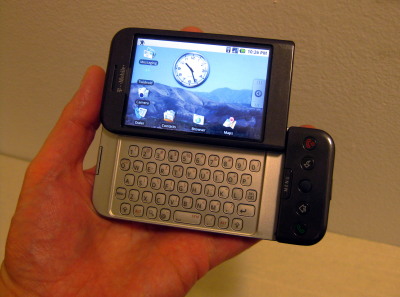
It took me about an hour to activate the phone, mainly because I didn’t have a data plan beforehand and it can take that long for a new plan to take effect. Once I did, I started playing around experimenting with it. (Unfortunately this meant a lot of the things I was going to do this afternoon…didn’t get done. Oh, well.)
Good Stuff:
- I really like the keyboard. Even though I’m using my thumbs, just knowing where the keys are (and not having to do any kind of combos for letters & numbers) means that I can type much faster than I could on the RAZR. I’m already starting to get used to some of the secondary characters, like dashes and such.
- Real web access! The web rendering is very nice. But then it’s WebKit, so it’s basically the same as Chrome or Safari, so that’s not a huge surprise.
- Twitdroid (a Twitter app) and Quickpedia (an optimized front-end for Wikipedia) have impressed me so far.
- There’s a tip calculator app called BistroMath. I had to pick it up or the name alone. (Sadly, it doesn’t seem to work as an FTL drive.)
- I absolutely love being able to look things up online instantly!
- Wi-Fi was easy to set up, including WPA2 security, so I can use our wireless network at home.
- Wallpaper selection is very nice, with a built-in crop & resize function.
- Plain old USB charging, which means I can still use the car charger I got for my last phone.
- The WPhone alternate interface for the WordPress admin area, originally developed for the iPhone, is fantastic on the G1! (Too bad they aren’t developing it much anymore.)
- The built-in calculator app includes limited scientific capabilities (trig, logs, roots, etc.)
- My bank has an app that will look up the nearest ATMs or branches to where I am.
- Scrolling by dragging the actual content instead of the scroll bar is surprisingly easy to get used to. Actually a lot of stuff about the UI is like that: awkward at first, but in just a few hours it becomes second nature.
Minor Issues:
- Our apartment is right on the edge of a cell coverage area, so I haven’t had a chance to try it out on the 3G network yet. But that’s not the phone’s fault.
- It took me a while to figure out how to
synctransfer data via the USB cable, since they’ve changed the way it’s handled since the manual was printed. The manual lists it as a system setting, but it’s now an option that pops up in the notification area when you connect it to a computer.
Not So Good
- The touch screen isn’t always responsive, but that may be because I haven’t removed the screen protector that ships with it. I wanted to pick one up that’s actually designed to be used before I pulled this one off. Update: After replacing the screen protector, it’s much more responsive.
- The covers on the USB port and memory card feel really flimsy.
- Battery life doesn’t seem to be terribly great. In fact, the clerk at the store suggested I charge it nightly.
- I’ve only played with the camera a little but seems slow and isn’t great with artificial lighting.
- Playing around with WordPress and Wikipedia shows how valuable it is to have a layout optimized for the small screen. The Android browser seems to rely entirely on zoom to handle large-screen layouts, and it would be nice to have something like Opera’s fit-to-width option. Update: It seems to ignore handheld stylesheets, which IIRC is true of the iPhone as well. When website providers try to help you with the small screen, maybe you should let them? *sigh* Need to see if it handles media queries, at least for screen size. Update 2: It does have a fit-to-width option, but I’m not entirely sure what it does, given that I keep running into layouts that end up scrolling horizontally.
Stuff I Have Not Tried But Intend To
- Anything involving GPS. I’m inside right now and it can’t get a signal.
- I don’t know how fast the download speed is over 3G. (Wifi is quite nice!) Update: 3G speed seems pretty decent, actually!
- Map directions. But it’s Google Maps, and those are generally quite good.
- I haven’t hooked up my Bluetooth earpiece yet. Update: Pretty simple. I just needed to remember how to put the headset in pairing mode.
- I haven’t tried connecting to an open WiFi network/hotspot.
- I need to do some more testing with the camera, see how it handles daylight, check out image quality, etc.
- I haven’t really messed with voice dialing.
- Email. It automatically links to your Gmail account, and has the ability to access POP and IMAP accounts, but I haven’t tried out any of the above yet.
Gone Widescreen
Last month I finally got around to a major rebuild of my computer, something I’d been meaning to do since May when I traced some display problems to the motherboard*. I finally bit the bullet when I started seeing signs of disk errors, and dragged the machine into the present day. (64-bit, dual-core, 2 GB RAM, SATA drive, faster everything.)
Then I discovered that some of the display problems actually were the fault of the monitor.
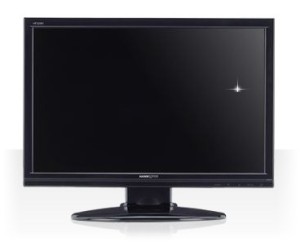 So I went out and bought a new monitor while Fedora was installing, and I took the opportunity to go widescreen.
My criteria were simple: The resolution and physical size both had to be as big or bigger than the old one (17″, 1280×1024), and it had to be under $300. That meant at minimum a 22″ display at 1680×1050, and I found a Hannspree 229HBP for about $190.
There was a Dell right next to it, same size & resolution and comparable specs, and the Best Buy employee had been talking both of them up. The Dell was on sale for $290. I asked what the difference was. He thought about it for a few seconds. “Well, this one [the Hannspree] does run a little bit hotter. But mostly it’s just the name.” Thank you, Best Buy employee whose name I’ve forgotten, for helping me save $100.
The biggest difference, aside from actually having room to show both the toolbox and document windows on GIMP, is that I don’t maximize windows anymore. Not that I maximized apps that often before, not counting the stuck-in-low-res period. I’ll occasionally run a video or slideshow fullscreen, but the only program I regularly maximize is my email client, and that’s because I can put it in three-column mode (Folder tree on the left, mailbox listing in the middle, message content on the right).
Something to watch out for: At first I left the monitor off-center, because there wasn’t enough room on my desk for it. I figured as long as I worked mostly on the right part of the screen I’d be fine. But I ended up having neck problems shortly afterward, and Katie suggested I check the placement of the monitor. I shifted things around so I could center it, then set it on top of an Amazon box to raise it a couple of inches, and the sore neck cleared up.
I’ve only run into two problems (not counting the placement): There’s one dead pixel, but it’s off in a corner so that it’s not really an issue. I almost didn’t notice it at first when I was still setting things up, because the default GNOME layout has a Mac-style ever-present menu bar, and it falls right on the edge. Usually it ends up either on the edge of a window border or lost in the wallpaper noise.
The other problem: the built-in speakers pretty much suck, but I had external speakers already, so again: no big deal.
* It stopped displaying any resolution past 1024×768. I could tell it wasn’t the monitor because it was perfectly happy to show another computer at 1280×1024. And not the drivers or OS because I had the same problem booting from a LiveCD. And not the video card because plugging in another one didn’t solve it. This was particularly frustrating since it was an LCD monitor, so running at less than native resolution made everything blurry. Still, I put off replacing the mobo for months since it’s such a pain to do.
It Pours
My desktop computer has been a bit flaky for a few months now. Well, more than that. There’s the problem where it won’t display anything in plain-text mode, but that’s not really a big deal. It was when it stopped running anything higher than 1024×768 that I started getting annoyed.
That turned out, oddly enough, to not be the video card. And not the monitor, since I could display higher resolution from the Windows box perfectly fine. And not my OS, since running a live CD had the same problem.
So I figured it was a motherboard issue. Fine, I’ll upgrade. Eventually. Wait ~4 months, and I’m starting to notice data errors on the hard drive. Great.
You know that old saying about how any project requires at least 3 trips to the hardware store? It applies to computers, too.
I finally got around to looking for a decent mobo/CPU/RAM combo, and a new hard drive. Ordered online. Arrived yesterday. Ran backup last night.
Today I dismantled everything, hampered by the fact that I could not find the box that has all the case components (faceplates so I could remove the ZIP drive which I haven’t used in 3 years, etc.), though I did eventually find the screws. After I installed the motherboard, I started plugging in connectors… only to discover that the power supply didn’t have the right kind of connector.
Off to Fry’s to get a new power supply, after stopping at storage to see if I could find that box with faceplates and stuff. No luck, and power supplies are astonishingly expensive, though I found one that fit my specs and was on sale and had a rebate, so that worked out. (Some of them are 1000-watt monstrosities that cost as much as a cheap computer, and in the words of another customer, “look like they should be in a Chevy.”)
Came back, hooked everything up, moved it back into the bedroom to hook everything up…and couldn’t go into the BIOS to set the boot device. After messing around a bit, determined that the text-mode problem, at least, actually was the monitor. So I’m borrowing Katie’s monitor while I install an actual 64-bit OS. Once it’s at the point where I can let it sit for a while, I’m going to run out to Best Buy for a new monitor. I suspect the resolution problem is different, but at this point I’m no longer inclined to suffer through it.
Still, it’s worth the upgrade (assuming, of course, that everything continues to work once I close up the case), since the old system was single-core, 32-bit, and ran on an IDE drive, and the new system is dual-core, 64-bit, will have more memory, a faster bus, a SATA drive, etc. This should be much faster.
Once it’s done, anyway.
Originally posted at LiveJournal.